

WiFi Dash Cams Explained: How They Work and Why You Might Want One
Dash cams have become much easier to use, especially when it comes to reviewing footage. Instead of removing a memory card or connecting your camera to a computer, you can now access recordings directly from your smartphone. That's one of the biggest reasons drivers are choosing dash cams with WiFi.
But there's a common misunderstanding about what wireless actually means. A dash cam wireless connection doesn't necessarily mean the camera operates without cables. Most WiFi dash cams still require a power source, and front and rear systems may need additional wiring between cameras.
So, what does WiFi actually do in a dash cam? Is it worth paying extra for? And can you find a completely wireless car camera that doesn't require complicated installation?
This guide explains how WiFi dash cams work, what separates them from traditional models, and which features matter when choosing one for your vehicle.
What Is a WiFi Dash Cam?
A WiFi dashcam is a dashboard camera with built-in wireless networking that allows it to communicate with compatible devices, usually a smartphone.
Traditional dash cams typically store recordings on a microSD card. To review footage outside the camera, you might need to remove the card, connect it to a computer, or use a built-in screen.
A WiFi dash cam makes that process more convenient. Using a compatible mobile app, you can typically access recorded videos, download important clips, adjust camera settings, and view the camera's live feed.
The camera still records footage using its own hardware and storage system. WiFi simply provides another way to access and manage that footage.
One detail worth understanding is that most dash cams with WiFi don't need an internet connection to communicate with your phone. They create a local wireless connection, allowing nearby devices to exchange data directly.
According to Garmin's explanation of built-in dash cam WiFi, this private connection works differently from connecting to a traditional home or public WiFi network.
How Does a WiFi Dash Cam Work?
The technology behind a WiFi dash cam is fairly straightforward. The camera records video, saves it to local storage, and uses its wireless connection to communicate with your smartphone when needed.
Here's how the process typically works.
Recording Footage While You Drive
When your vehicle supplies power to the dash cam, the camera begins recording according to its settings.
Most modern dash cams use loop recording, which divides footage into shorter video files. Once the storage card becomes full, the camera can overwrite older, unprotected recordings.
Some models also include a G-sensor that detects sudden impacts or unusual movement. Depending on the device's settings, this can trigger the protection of relevant footage from normal loop overwriting.
WiFi isn't required for this basic recording process. A properly configured dash cam can usually continue recording even when your smartphone isn't connected.
Connecting Your Dash Cam to Your Phone
A dash cam with WiFi typically creates its own local wireless network.
After installing the manufacturer's compatible app, you connect your phone to the camera using the pairing instructions.
Depending on the model, the app may guide the entire connection process, or you may need to select the camera's WiFi network manually.
Once connected, you can use supported app features to access footage and camera settings.
The Nextbase guide to connecting a dash cam to your phone explains how Bluetooth and WiFi can work together for pairing, video access, and camera management.
Viewing and Downloading Video Files
Imagine another driver bumps your parked vehicle while you're nearby.
With a compatible WiFi dash cam, you can open the mobile app, locate the relevant recording, and save it to your phone without removing the memory card.
This can be particularly useful when you need to preserve footage quickly or share it with an insurance provider.
However, transfer speed depends on the camera, wireless signal, video resolution, and smartphone compatibility. Large 4K recordings may take longer to download than shorter, lower-resolution clips.
WiFi Dash Cam vs. Traditional Dash Cam: What's the Difference?
Both WiFi and traditional dash cams perform the same essential task: recording what happens around your vehicle. The main difference is how conveniently you can access and manage that footage.
| Feature | WiFi Dash Cam | Traditional Dash Cam |
|---|---|---|
| Video recording | Records to local storage | Records to local storage |
| Smartphone connection | Usually supported through an app | Often unavailable |
| Video downloads | Wireless transfer on supported models | Usually through a memory card or cable |
| Live camera preview | Often available locally | Usually limited to a built-in display |
| Camera settings | Can often be adjusted through an app | Usually adjusted on the camera |
| Power requirements | Typically requires external power | Typically requires external power |
| Internet required for recording | No | No |
| Installation complexity | Depends on camera design | Depends on camera design |
For drivers who rarely review their recordings, a traditional dash cam may provide everything they need. But if you frequently check footage, adjust settings, or save clips to your phone, WiFi connectivity can make ownership noticeably more convenient.
Benefits of Using Dash Cams With WiFi
WiFi doesn't necessarily improve the camera's image quality, but it can improve the experience of using it. Here are the benefits that matter most in everyday driving.
Easier Access to Important Recordings
One of the biggest advantages of a dash cam WiFi connection is the ability to retrieve footage without handling a memory card.
You can review recordings while sitting in your parked vehicle, provided the camera is powered and the phone is within connection range.
This saves time when you need to find a particular clip or confirm whether an incident was recorded.
Convenient Video Sharing
A WiFi dash cam can simplify the process of saving videos to your phone.
Once downloaded, the footage can be shared through your phone's normal file-sharing options, including email or messaging applications.
For example, if you capture a road hazard or witness a minor collision, you can preserve the recording before older footage is overwritten.
Always stop in a safe location before reviewing or sharing videos.
Easier Camera Setup and Adjustments
Small dash cam screens can be difficult to navigate, especially when the camera is mounted behind the rearview mirror.
A smartphone app can provide a more comfortable interface for changing settings such as video resolution, recording preferences, audio recording, and other supported features.
Some cameras also offer live preview, making it easier to check the recording angle during installation.
For additional placement guidance, see TORVO's guide to finding the best dash cam mounting position.
More Convenient Software Updates
Certain WiFi dash cams support firmware updates through their companion apps.
These updates may address bugs, improve compatibility, or introduce supported features.
The exact process varies by manufacturer. Some models download updates through a phone, while others require a memory card or computer.
Better Everyday Usability
A dash cam is most useful when you can retrieve the footage you need.
Wireless access removes some of the inconvenience associated with older recording systems, particularly for drivers who regularly review footage.
That doesn't make WiFi essential for everyone, but it can be a worthwhile feature for commuters, rideshare drivers, and anyone who prefers managing devices through a smartphone.
Does a Wireless Dash Cam Need Wires?
Yes, most wireless dash cams still require cables for power.
The word "wireless" usually refers to how the camera transfers information, not how it receives electricity.
A typical dash cam uses one of several power arrangements:
- 12V accessory outlet: The camera connects to a compatible vehicle power adapter.
- USB power connection: Some models use a compatible USB power source.
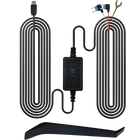
- Hardwire installation: A suitable hardwire kit connects the camera to the vehicle's electrical system, often supporting additional parking features.
Some cameras contain small internal batteries or capacitors, but these are generally not intended to support extended, cable-free driving recordings.
This distinction matters when shopping for a bluetooth dash cam no wires solution. Bluetooth and WiFi can remove the need for a data cable between your phone and camera, but they don't eliminate the camera's power requirements.
A clean installation is still possible. Properly routed cables can often be concealed along suitable interior trim while avoiding airbags and other safety components.
For practical installation advice, read TORVO's step-by-step dash cam installation guide.
WiFi vs. Bluetooth Dash Cams: Which Is Better?
WiFi and Bluetooth are both wireless technologies, but they serve different purposes in dashboard cameras.
WiFi is generally used for higher-bandwidth activities, such as viewing video footage and transferring recordings to a smartphone.
Bluetooth is commonly used for device discovery, pairing, and maintaining certain low-power connections.
Some dash cams use both technologies. Bluetooth helps establish communication, while WiFi handles larger video transfers.
| Feature | WiFi | Bluetooth |
|---|---|---|
| Common dash cam purpose | Video access and file transfers | Pairing and device communication |
| Large video transfers | Generally better suited | Generally less suitable |
| Live video preview | Commonly supported | Usually handled through WiFi |
| Power consumption | Often higher during active transfers | Can be lower, depending on implementation |
| Internet access | Not required for local connections | Not required |
A dash cam offering both WiFi and Bluetooth can be convenient, but the presence of both technologies doesn't automatically make it superior.
The app's reliability, camera hardware, and supported features are more important than the number of wireless technologies listed on the packaging.
Are Wireless Front and Rear Dash Cams Worth It?
A wireless dashcam front and rear setup is appealing because it promises broader road coverage without complicated wiring.
Front and rear recording can capture activity ahead of your vehicle while also documenting what happens behind it.
This can be particularly helpful during rear-end collisions, parking incidents, and situations where the front camera doesn't capture the full sequence of events.
However, the term wireless front and rear dash cam can describe several different arrangements.
Front and Rear Cameras Connected by Cable
Many dual-channel systems use a front camera and a separate rear camera connected through a cable.
The front unit may have WiFi for smartphone connectivity, but the rear camera still requires a physical connection.
These systems can provide coordinated recording and reliable communication between cameras.
Cameras With Wireless Data Connections
Some camera systems transmit data wirelessly between components, although they still need appropriate power sources.
Their installation requirements, connection reliability, and recording capabilities depend on the specific system.
Before purchasing, check whether wireless refers to smartphone connectivity or the actual connection between the front and rear cameras.
What to Consider Before Buying
For a front and rear setup, prioritize dependable recording over a completely cable-free appearance.
Look for clear daytime and nighttime footage, reliable storage, practical installation requirements, and a companion app that makes recordings easy to retrieve.
If rear coverage is essential, confirm that the specific package includes a rear camera rather than assuming every WiFi-enabled dash cam supports dual-channel recording.
What to Look for in the Best Wireless Car Camera
The best wireless car camera isn't necessarily the one with the longest feature list. It's the one that records reliably, captures useful detail, and makes footage accessible when you need it.
Here are the features worth comparing.
Video Resolution and Image Quality
Resolution determines how many pixels a video contains, but it doesn't tell the whole story about image quality.
A 4K dash cam can capture more detail than a lower-resolution model under suitable conditions. However, sensor quality, lens performance, compression, exposure, and lighting also influence how clearly vehicles and license plates appear.
Look for real sample footage recorded during daylight, nighttime, and challenging lighting conditions.
WiFi Frequency and Transfer Performance
Many dash cams use 2.4GHz WiFi, 5GHz WiFi, or support both.
The 2.4GHz band generally offers better range and penetration, while 5GHz can provide faster transfers at shorter distances under suitable conditions.
For a dash cam mounted inside a vehicle, faster local transfers can be helpful when downloading large recordings.
Actual performance still depends on the device hardware, interference, app implementation, and smartphone compatibility.
Night Vision and HDR
Nighttime recording is one of the most important considerations for drivers.
High Dynamic Range (HDR) can help a camera handle scenes with bright headlights and darker surroundings, depending on how well the feature is implemented.
Rather than relying on labels such as advanced night vision, compare actual low-light video samples.
GPS Recording
Built-in GPS can add useful context to recordings, such as location and speed information.
The availability and accuracy of these details depend on the model, GPS reception, and recording settings.
GPS isn't a replacement for good video quality, but it can provide additional information when reviewing an incident.
Parking Monitoring
Parking mode allows compatible dash cams to monitor activity when the vehicle is parked.
Depending on the camera, this may involve impact detection, motion detection, time-lapse recording, or buffered event recording.
Most extended parking monitoring systems require a suitable continuous power arrangement, often involving a hardwire kit or dedicated battery pack.
Check power requirements and vehicle battery protection features before enabling parking recording.
Storage Capacity and Reliability
A dependable memory card matters just as much as wireless connectivity.
Look for a camera that supports sufficient storage for your recording resolution and driving habits.
A high-endurance microSD card designed for repeated video recording is often a sensible choice, provided it meets the manufacturer's specifications.
TORVO TD3: A 4K Dash Cam With Built-In WiFi
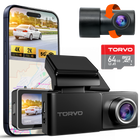
If you're looking for a WiFi-enabled dash cam with high-resolution recording, the TORVO TD3 Dash Cam is one option to consider.
The TD3 combines 4K front recording with built-in WiFi and GPS, giving drivers a way to capture detailed road footage while accessing supported wireless features.
Its listed features include:
- 4K video recording: Designed to capture detailed footage of the road ahead.
- Built-in WiFi: Supports wireless connectivity for compatible camera functions.
- Built-in GPS: Provides location-related recording capabilities.
- 170° wide-angle lens: Captures a broad view of the road.
- 3.2-inch IPS display: Allows footage viewing and camera interaction directly on the device.
- HDR night vision: Designed to improve recording performance in challenging lighting.
- Storage support up to 256GB: Offers flexibility for recording storage.
- 24-hour parking monitoring: Available with the appropriate power setup.
For drivers who want both high-resolution footage and convenient wireless connectivity, these features make the TD3 worth evaluating.
Before purchasing, confirm the current package contents, compatible mobile app, supported wireless functions, and parking mode installation requirements.
Dash Cam Won't Connect to WiFi? Common Problems and Fixes
Even a well-designed WiFi dash cam can occasionally experience connection problems.
If your dash cam won't connect to WiFi, the issue may involve camera settings, phone permissions, wireless interference, or an interrupted pairing process.
Fortunately, several common problems can be checked without specialized equipment.
Check That WiFi Is Enabled on the Camera
Some dash cams require you to activate WiFi manually before connecting.
Open the camera settings and confirm that wireless connectivity is enabled.
Depending on the model, the camera may display its network name and password or provide instructions through the companion app.
Confirm You're Using the Correct App
Different manufacturers use different mobile applications.
Make sure you've installed the app intended for your specific dash cam model, rather than a similarly named third-party application.
Check the manufacturer's instructions for supported Android and iOS versions.
Check Your Phone's WiFi Connection
Your smartphone may automatically switch away from a dash cam network because the connection doesn't provide internet access.
If your phone displays a message such as "Connected without internet," that may be normal for a local dash cam connection.
Keep the phone connected to the camera's network when required by the manufacturer's setup instructions.
Review App Permissions and Network Settings
Some mobile operating systems require permission for an app to discover or communicate with nearby devices.
Check whether the dash cam app has the permissions specified by the manufacturer.
VPNs, security applications, and network-filtering services can also interfere with some connections.
Garmin's WiFi troubleshooting guidance identifies VPN and ad-blocking interference among the possible causes of connection failures on supported devices.
Restart the Camera and Smartphone
A restart can resolve temporary connection problems.
Turn off the camera safely, restart your smartphone, and repeat the manufacturer's pairing procedure.
If the issue continues, check for app or firmware updates. Only reset the camera after reviewing the instructions and understanding which settings may be lost.
Quick WiFi Troubleshooting Checklist
| Problem | Possible Cause | What to Try |
|---|---|---|
| Camera network doesn't appear | WiFi disabled or camera not in pairing mode | Enable WiFi and follow pairing instructions |
| Phone connects but app doesn't respond | Permissions or app compatibility | Review permissions and update the app |
| Phone says no internet | Local camera network has no internet connection | Stay connected if the app requires it |
| Video downloads are slow | Large files or wireless interference | Move closer and reduce interference |
| Connection repeatedly drops | Phone switching networks or temporary software issue | Reconnect, restart, and check network settings |
| Camera still won't pair | Incorrect pairing details or firmware issue | Follow the manufacturer's reset and update guidance |
One additional point: certain dash cams temporarily pause recording while transferring footage or performing software updates. Check your model's operating instructions before assuming it continues recording during every wireless activity.
Frequently Asked Questions About WiFi Dash Cams
Do WiFi dash cams need an internet connection?
No. Most WiFi dash cams use a local wireless connection between the camera and smartphone. This allows you to access supported features without an internet connection. Remote cloud services, where offered, may require internet or cellular connectivity.
Can a WiFi dash cam record without being connected to my phone?
Yes. Most models record directly to a memory card while powered and properly configured. Your phone is generally only needed when accessing wireless features.
Is a wireless dash cam completely wireless?
Usually not. Most dash cams described as wireless still need a power cable. Wireless typically refers to WiFi or Bluetooth communication rather than battery-powered operation.
Can I watch my dash cam remotely using WiFi?
Not necessarily. A standard local WiFi connection usually requires your phone to be near the camera. Remote viewing from another location requires additional connectivity and compatible services, such as a cloud-enabled system with internet access.
Is a 5GHz WiFi dash cam better than a 2.4GHz model?
A 5GHz connection can offer faster video transfers under suitable conditions, while 2.4GHz often provides better range. For drivers who frequently download large video files, 5GHz support can be useful.
Do wireless front and rear dash cams require two power connections?
It depends on the system. Many dual-channel dash cams connect the rear camera to the front unit using a cable, while other designs may use separate power arrangements. Always review the installation diagram before buying.
Why does my dashcam WiFi keep disconnecting?
Possible reasons include interference, smartphone network switching, app permissions, outdated firmware, or temporary software problems. Start by checking the manufacturer's connection instructions and restarting both devices.
Can I use a WiFi dash cam without a memory card?
Some specialized systems offer alternative storage arrangements, but most consumer WiFi dash cams rely on a compatible microSD card for continuous local recording. WiFi connectivity doesn't replace the need for storage.
Final Thoughts: Is a WiFi Dash Cam Worth It?
A WiFi dash cam is worth considering if you want an easier way to review recordings, download important footage, and manage camera settings from your phone.
The biggest advantage isn't that the camera operates without cables. It's that accessing footage becomes more convenient, especially when you need a recording quickly.
For most drivers, the right choice comes down to dependable video quality, stable wireless connectivity, practical installation, and reliable storage.
If you're comparing WiFi-enabled cameras, the TORVO TD3 4K Dash Cam offers a combination of 4K recording, built-in WiFi, GPS, and other driving-focused features worth exploring.
Choose a dash cam that fits how you drive and how often you expect to review your recordings. A convenient connection is useful, but clear and dependable footage is what matters most.

Comments (0)
Leave a reply