

How to Install a Dash Cam (Step-by-Step)
Most dash cams arrive with a mount, a long power cable, and a quick-start card that makes the whole thing look like a two-minute job. And technically, it can be. Stick the camera to the glass, plug it into the 12V socket, and you are recording.
The problem is what that two-minute install looks like a week later: a cable swinging across the dashboard, a camera that picks up more hood than road, and a rear cam whose wire gets pinched every time someone opens the hatch. A good dash camera install takes closer to an hour, and that hour is what separates footage you can actually use from a gadget that quietly stops working.
This guide walks through the full process, from choosing where to install a dash cam to routing the cable, setting up a rear camera, and deciding whether hardwiring is worth it. If you are still getting familiar with how these cameras record and store footage, our beginner’s guide on how dash cams work is a useful starting point.
What You Need Before You Start
Gather everything first so you are not hunting for a tool with half a trim panel off. For a basic plug-in install, the list is short:
- Your dash cam, mount, and power cable (plus the rear camera and its cable for a dual setup)
- A plastic trim removal tool (a metal screwdriver will scratch trim and can damage clips)
- Isopropyl alcohol and a lint-free cloth for cleaning the glass
- A microSD card, ideally a high-endurance card rated for continuous recording
- A few small cable clips or zip ties
- Your vehicle’s owner’s manual
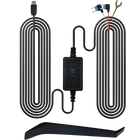
If you plan to hardwire the camera to the fuse box, add a hardwire kit made for your camera, add-a-circuit fuse taps that match your car’s fuse type, and a multimeter or circuit tester.
A tip before you commit to anything: power the camera on in the car with the cable loosely draped and check the live view. Five minutes of testing now saves you from routing a cable perfectly and then discovering the camera is defective or the angle is wrong.
Where to Install Dash Cam
Placement matters more than people expect. The ideal spot gives the camera a clear, centered view of the road, keeps it inside the area your wipers clear, and keeps it out of your line of sight.
For most cars, that spot is high on the windshield, just behind or beside the rearview mirror, slightly toward the passenger side. From the driver’s seat, the mirror hides most of the camera, and the lens sits high enough to see over the hood.
A few things to check before you peel the adhesive backing:
- Stay inside the wiper sweep. Rain and grime outside that zone will blur your footage exactly when conditions are worst.
- Avoid the dark tint band and the dotted border (called the frit) along the top of the glass. Tint cuts light, and adhesive often bonds poorly to the dots.
- Keep clear of your car’s own sensors. Many newer vehicles have a camera housing behind the mirror for lane-keeping or automatic emergency braking. Do not block it or mount right against it.
- Check the hood in the frame. A sliver of hood at the bottom of the image is fine and helps orient the viewer. Half the frame is too much.
Is Dash Cam Placement Regulated?
Often, yes. Windshield obstruction rules vary by state and country, so check your local laws. California is a good example of how specific these rules can get. California Vehicle Code 26708 permits windshield mounting only in defined zones: a 7-inch square in the lower corner farthest from the driver, a 5-inch square in the lower corner nearest the driver (kept outside the airbag deployment zone), or a 5-inch square at the top center of the windshield. You can read the full text of California Vehicle Code Section 26708 on FindLaw.
Commercial drivers in the U.S. have federal rules too. Under 49 CFR 393.60, devices with vehicle safety technologies must sit no more than 8.5 inches below the top of the wiper-swept area or no more than 7 inches above its bottom edge, and outside the driver’s sight lines to the road and signals.
The top-center position behind the mirror satisfies most of these rules, which is one more reason it is the default choice.
Quick Comparison of Mounting Positions
| Mounting position | Pros | Cons |
|---|---|---|
| Top center, behind the mirror | Best road view, hidden from driver, legal in most places | Can crowd factory sensors on newer cars |
| Top, passenger side of mirror | Easy access to screen and buttons | Slightly off-center footage |
| Lower passenger corner | Allowed in some states with size limits | Sees more hood, may miss overhead signals |
| On the dashboard | Avoids windshield rules entirely | Glare, vibration, and sliding in turns |

How to Install a Dash Cam: Step-by-Step
This is the standard front camera install using the included power cable. It works for almost any car and does not involve touching the fuse box.
Step 1: Clean the Glass and Mount the Camera
Wipe the mounting spot with isopropyl alcohol and let it dry completely. Oils from fingers or glass cleaner residue are the most common reason adhesive mounts fall off in summer heat.
Press the adhesive mount firmly for 20 to 30 seconds. Adhesive bonds best at moderate temperatures, so avoid doing this on a freezing morning or in a car that has been baking in the sun. If your manual gives a curing time, give the mount that long before hanging the camera’s full weight on it. Suction mounts are more forgiving and easier to reposition, but they tend to loosen over time.
Step 2: Tuck the Cable Into the Headliner
Plug the power cable into the camera and start routing it toward the nearest top corner of the windshield (usually the passenger side, since that keeps the cable away from you). Use the trim tool to gently push the cable into the gap between the headliner and the windshield. Most headliners flex enough to hide the cable completely.
Step 3: Route Down the A-Pillar (Carefully)
The A-pillar is the post between the windshield and the front door, and it is the one part of this dashcam install that deserves real caution. Many modern cars have side curtain airbags running along or behind the A-pillar trim.
The rule is simple: the cable should never run across the face of an airbag. If the airbag deploys, a cable in its path can interfere with it or get thrown toward occupants. Instead, either:
- Tuck the cable into the rubber door seal that runs alongside the pillar, or
- Carefully pop off the A-pillar trim and secure the cable behind the airbag, along the existing factory wiring, with zip ties.
Your owner’s manual will show where airbags are located. If you are unsure, the door seal route is the safer choice.
Step 4: Run the Cable Along the Dash to the Power Source
Continue tucking the cable into the door seal down to the dashboard, then under or behind the side of the dash toward the 12V socket or USB port. Leave a little slack at each end so the camera can be adjusted and the plug does not strain.
Bundle any leftover cable with a zip tie and tuck it behind the glovebox or under the dash, well away from the pedals.
Step 5: Insert the SD Card and Configure Settings
Insert the microSD card and format it inside the camera, even if it is brand new. Formatting in the camera sets up the file structure it expects. Then set the date and time, video resolution, loop recording length, and G-sensor sensitivity (the setting that decides how hard a jolt must be before a clip is locked).
Step 6: Aim, Test Drive, and Review
Adjust the lens so the horizon sits roughly in the middle of the frame. Then take a short drive, pull over, and watch a clip. Check that plates are readable in good light, that the image is not tilted, and that the camera starts and stops with the ignition.
How to Install Dash Cam Front and Rear
A dual-channel setup adds a second camera on the rear window. The front install stays the same; the rear camera needs its own route through the cabin.
Rear Dash Cam Installation: Where to Mount It
Mount the rear camera at the top center of the rear window, inside the area covered by the rear wiper if your car has one. On many sedans, the defroster lines crossing the glass are the main obstacle. Position the camera so a heater line does not run straight through the lens view.
Test the view before sticking it down. Rear window tint is often darker than the windshield, which affects night footage, and some rear cameras have a mirror or flip setting in the menu if your image appears upside down or reversed.

How to Route the Rear Camera Cable
The rear cable typically connects to the front camera, so it has to travel the length of the cabin. The cleanest route follows the headliner edge:
- Start at the front camera and tuck the cable into the headliner, running it toward the back along the side of the roof.
- Continue past the B-pillar and C-pillar, tucking behind the headliner or the pillar trim and staying clear of curtain airbag zones as you did at the front.
- At the rear window, bring the cable to the camera and leave enough slack for adjustments.
For SUVs, hatchbacks, and trucks with a tailgate window, the cable has to cross from the body into the moving hatch. Look for the rubber boot or grommet that carries factory wiring between the roof and the hatch. Feeding the cable through it is fiddly but lasting. Running the cable through the door gap instead is quicker, but it tends to get pinched and eventually fail. Whichever route you choose, open and close the hatch several times before you call the job done.
Rear cable routing is the step that takes longest in most dual-channel installs. On a sedan, expect it to take longer than the front camera. On an SUV with a hatch boot to work through, it can take noticeably longer still.
Choosing a Power Method: Plug-In or Hardwire?
The included 12V adapter is the simplest option, but it is not the only one.
| Power method | Difficulty | Parking mode | Best for |
|---|---|---|---|
| 12V socket (cigarette lighter) | Easy | Only if the socket stays powered with the engine off | First-time installers, leased cars |
| USB port / OBD-II power cable | Easy to moderate | Varies by car and cable | Drivers who want the socket free |
| Hardwire kit to fuse box | Moderate | Yes, with a kit that supports it | Parking protection, cleanest look |
When Hardwiring Makes Sense
Hardwiring connects the camera directly to the fuse box. It frees up your 12V socket, hides the last visible bit of cable, and is usually required for true parking mode, where the camera keeps watching the car while it is parked.
A typical hardwire kit has three wires: a constant power wire (always live, for parking mode), an accessory (ACC) wire that is live only with the ignition on, and a ground. The basic process looks like this:
- Use your manual’s fuse diagram and a circuit tester to find one fuse that is always live and one that switches with the ignition.
- Avoid safety-critical circuits entirely, such as airbag (often labeled SRS), ABS, or engine control fuses.
- Install add-a-circuit fuse taps in those slots, keeping the original fuse in its position and adding the low-amp fuse supplied with your kit for the camera.
- Attach the ground wire under a bare metal chassis bolt near the fuse box. A poor ground is one of the most common causes of cameras rebooting or parking mode failing.
- Set the kit’s low-voltage cutoff so the camera shuts off before your battery gets too low to start the car.
If this sounds like more than you want to take on, it is a perfectly reasonable point to hand the job to a professional.
A note on car warranties: installing an aftermarket accessory does not automatically void your vehicle warranty in the U.S. The FTC explains that a manufacturer or dealer must prove an aftermarket part caused damage before denying coverage, though a part installed incorrectly can still lead to a denied claim for whatever it damaged. See the FTC’s guide to auto warranties and aftermarket parts for details. That is one more reason to use fuse taps rather than cutting or splicing factory wiring.
Common Dash Cam Installation Mistakes
Most failed installs come down to the same handful of errors:
- Mounting outside the wiper area, which leaves the lens looking through a smeared windshield in rain.
- Running cable over an airbag on the A-pillar or along the roof.
- Skipping the test before routing, then discovering an angle or power problem after everything is tucked in.
- Leaving the rear cable loose at the hatch, where it gets pinched and eventually breaks.
- Never checking the SD card. Cards wear out. Reformat periodically in the camera and glance at your footage now and then to make sure it is still recording.
Getting Dash Cameras Installed Near You
DIY car dash cam installation is well within reach for most drivers, especially with a plug-in setup. A professional install is worth considering if you want hardwiring and parking mode but are uncomfortable in a fuse box, if your vehicle has complex curtain airbags or a powered liftgate, or if you simply want it done cleanly in one visit.
When searching for dash cameras installed near you, car audio and mobile electronics shops are the usual place to start, since wiring accessories is their everyday work. Ask whether they hardwire with fuse taps rather than splicing, how they route cables around airbags, and whether they test parking mode before handing the car back. Prices vary widely by region and vehicle, so get a quote that covers the rear camera too if you have one. TORVO’s dealer locator can also help you find a retailer in your area.
Choosing a Dash Cam That Is Easy to Install
A camera’s design affects how pleasant the install is. A compact body tucks behind the mirror more easily, a built-in screen lets you aim the lens without a phone, and Wi-Fi app access makes checking the angle and downloading clips much simpler.
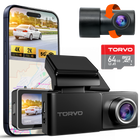
The TORVO TD3 Dash Cam, for example, pairs 4K recording and a 170° wide-angle lens with a 3.2-inch IPS display, built-in Wi-Fi and GPS, 24-hour parking monitoring, and support for memory cards up to 256GB. Check the included manual for the exact power and parking mode requirements before you decide between plug-in and hardwired power, and remember to register your warranty once the camera is installed.
Frequently Asked Questions
How long does it take to install a dash cam?
A front-only plug-in install usually takes 20 to 45 minutes once you are comfortable tucking cables. Adding a rear camera or hardwiring can stretch that to one to two hours or more, depending on the vehicle.
Where is the best place to install a dash cam?
For most cars, high on the windshield behind or just beside the rearview mirror, inside the wiper sweep, and clear of any factory sensor housing. Always confirm your local windshield obstruction rules.
Can I install dashcam without hardwiring?
Yes. The included 12V adapter works for everyday recording. Hardwiring is mainly needed for parking mode and a completely hidden cable.
Will a dash cam drain my car battery?
A plug-in camera on a socket that shuts off with the ignition will not. A hardwired camera in parking mode draws power while parked, which is why hardwire kits include a low-voltage cutoff. Set it conservatively, especially if the car sits for days at a time or has an older battery.
Does installing a dash cam void my car’s warranty?
Not automatically, in the U.S. A dealer would have to show the camera or its installation caused a specific problem. Using fuse taps instead of cutting wires keeps the install clean and reversible.
How to install a rear dash cam an SUV?
Mount the camera high on the rear glass inside the wiper area, route the cable along the headliner to the back, and pass it into the hatch through the rubber wiring boot between the roof and liftgate. Test the hatch repeatedly to make sure the cable never pinches.
The Takeaway
Installing a dash cam properly comes down to three things: mount it where it sees the road clearly without blocking your view, route every cable so it stays hidden and never crosses an airbag, and test the whole system before you call it finished. Start with a plug-in install if you are new to this. You can always add a hardwire kit later if you want parking protection.
Once the camera is in, spend five more minutes watching a clip from your first drive. It is the easiest way to know your camera will be ready on the day you actually need it.

Comments (0)
Leave a reply