

How Does Wireless CarPlay Work? A Simple Explanation
If you have ever plugged your iPhone into your car, watched CarPlay appear on the dashboard, and wondered, “Can this work without the cable?”, the answer is yes, if your vehicle supports wireless CarPlay or you use a compatible wireless adapter.
But wireless CarPlay can seem confusing at first. Does it use Bluetooth? Does it use Wi-Fi? Does your phone connect directly to the car? And what exactly does a wireless CarPlay adapter do?
The short answer is that wireless CarPlay uses both Bluetooth and Wi-Fi, but they have different jobs. Bluetooth helps discover and establish the connection, while Wi-Fi handles the main CarPlay data connection. Apple explains that wireless CarPlay uses Bluetooth for discovery and reconnection, with Wi-Fi carrying the audio, video, and other CarPlay communication.
Once you understand that process, wireless CarPlay becomes much easier to understand.
What Is Wireless CarPlay?
Wireless CarPlay is Apple’s system for bringing selected iPhone functions to a compatible vehicle’s infotainment display without requiring a USB cable during normal use.
Instead of holding your phone while driving or repeatedly plugging it into the car, CarPlay puts supported features such as navigation, calls, messages, music, and Siri on the vehicle’s display and lets you control them through the car’s touchscreen, buttons, knobs, or voice controls.
The important distinction is the word wireless.
Traditional wired CarPlay uses a USB cable to establish the connection between the iPhone and the vehicle. Wireless CarPlay replaces that physical data connection with a wireless connection between the phone and the car’s compatible infotainment system.
Your iPhone still needs a connection to the internet for many online services, such as streaming music or receiving live traffic information. Wireless CarPlay itself, however, is not simply your phone connecting to the car through ordinary Bluetooth audio.
That distinction explains why wireless CarPlay can display maps, app interfaces, and other information rather than functioning only as a Bluetooth music connection.

How Does Wireless CarPlay Work?
The easiest way to understand wireless CarPlay is to think of the connection as a two-stage process.
1. Bluetooth helps establish the connection
When you first connect an iPhone to a wireless CarPlay system, Bluetooth plays an important role in discovering and establishing communication with the vehicle.
Apple’s technical documentation explains that Bluetooth is used to discover and reconnect CarPlay devices. It also describes how the initial wireless setup can transfer the information needed for the phone to establish the Wi-Fi connection.
This is why Bluetooth needs to be enabled when setting up wireless CarPlay.
2. Wi-Fi carries the main CarPlay connection
After the initial connection process, Wi-Fi takes over the heavy lifting.
Apple explains that the Wi-Fi link is used for the audio and video transfer associated with CarPlay, as well as other CarPlay communication.
This is an important difference between wireless CarPlay and ordinary Bluetooth audio.
Bluetooth is useful for relatively simple wireless communication, including hands-free calling and audio streaming. CarPlay needs a much richer connection because the vehicle is interacting with an iPhone-based interface, including navigation, audio, controls, and other supported functions.
A simplified version looks like this:
| Connection | Main purpose |
|---|---|
| Bluetooth | Device discovery, pairing, and connection setup |
| Wi-Fi | Main CarPlay data connection |
| CarPlay | Delivers supported iPhone features to the vehicle display |
So, if you are asking, “Does wireless CarPlay use Wi-Fi or Bluetooth?”, the most accurate answer is both. They simply perform different roles.
Does Wireless CarPlay Use Wi-Fi or Bluetooth?
This is one of the most common questions about wireless CarPlay.
The answer is not “Bluetooth instead of Wi-Fi.” Wireless CarPlay uses both technologies.
Apple’s own developer documentation specifically states that wireless CarPlay requires Bluetooth and a Wi-Fi access point. Bluetooth is used for discovery and the initial connection, while Wi-Fi handles the main CarPlay communication.
That means turning on Bluetooth alone does not turn ordinary Bluetooth audio into wireless CarPlay.
Likewise, connecting your iPhone to a random Wi-Fi network in your vehicle does not automatically create a CarPlay connection.
The vehicle’s infotainment system must support the appropriate CarPlay functionality.
What Is the Difference Between Wired and Wireless CarPlay?
The main difference is how the phone communicates with the vehicle.
With wired CarPlay, the iPhone connects through USB. With wireless CarPlay, the connection is established wirelessly.
The experience after connection is designed to provide access to many of the same CarPlay functions. Apple describes CarPlay as a way to access directions, calls, messages, music, and other supported features through the vehicle’s display.
Here’s a simple comparison:
| Feature | Wired CarPlay | Wireless CarPlay |
|---|---|---|
| USB cable required during use | Yes | No |
| Bluetooth involved | Not necessarily for CarPlay data | Yes |
| Wi-Fi connection | No | Yes |
| Phone charging through the connection | Yes | No, unless separately charging |
| Automatic wireless convenience | No | Yes, when supported and configured |
| Requires compatible vehicle system | Yes | Yes |
One practical advantage of wired CarPlay is that the phone can charge through the USB connection. Wireless CarPlay removes the cable from the data connection, but it does not remove the need to charge your phone.
If your battery is low, you may still want a wireless charging pad or another charging solution.
How to Connect an iPhone to Wireless CarPlay
Before trying to connect, make sure your vehicle actually supports wireless CarPlay. Apple recommends checking vehicle compatibility and keeping the iPhone updated.
The exact menu names can vary between vehicle manufacturers, but the general process is straightforward.
Step 1: Start the vehicle
Turn on the vehicle and make sure the infotainment system is active. If required by your vehicle, put it in Park while completing the setup.
Step 2: Turn on Bluetooth and Wi-Fi
On your iPhone, make sure both Bluetooth and Wi-Fi are enabled.
Apple’s current instructions for wireless CarPlay specifically tell users to make sure Wi-Fi is turned on and to connect through the appropriate CarPlay network when required.
Step 3: Put the vehicle into pairing mode
Depending on the vehicle, you may need to press and hold the voice-command button on the steering wheel or select a wireless or Bluetooth pairing option on the infotainment system.
Step 4: Select the vehicle on your iPhone
Go to:
Settings > General > CarPlay
Then select your vehicle from the available options.
Apple provides these steps for setting up wireless CarPlay and recommends checking the vehicle manual when the exact controls differ by model.
Step 5: Allow the connection to complete
Once pairing is finished, CarPlay should appear on the vehicle’s display. On some vehicles, it may launch automatically.
After the initial setup, your phone can reconnect wirelessly when you start the vehicle, provided the vehicle and phone support the required functionality and the relevant wireless settings remain enabled.
What If My Car Only Has Wired CarPlay?
This is where a wireless CarPlay adapter can be useful.
A wireless CarPlay adapter is a small device designed to connect to a vehicle’s existing wired CarPlay USB port and provide a wireless connection between the vehicle’s CarPlay system and a compatible phone.
The basic idea is simple:
Phone → wireless connection → adapter → vehicle’s wired CarPlay interface
Instead of plugging your iPhone into the vehicle every time, the adapter stays connected to the car’s USB port. Your phone then connects to the adapter wirelessly.
However, compatibility matters.
A wireless adapter is not necessarily a way to add full CarPlay functionality to a vehicle that has no CarPlay support at all. Many adapters are designed specifically for vehicles that already have wired CarPlay.
Before purchasing an adapter, check whether your vehicle supports wired CarPlay and whether the adapter is compatible with your specific setup.
What Is a Wireless CarPlay Adapter?
A wireless CarPlay adapter acts as a bridge between your phone and an existing wired CarPlay system.
Instead of the iPhone communicating with the car through a USB cable, the adapter handles the wireless side of the connection while communicating with the vehicle through its USB connection.
This can be particularly useful for drivers who already have wired CarPlay but dislike taking the phone out of their pocket or bag and connecting a cable every time they drive.
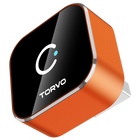
For example, the TORVO Mini CarPlay and Android Auto is designed for wireless CarPlay and Android Auto and uses Bluetooth 5.4 and dual-band Wi-Fi 6 for its wireless connection.
The important thing to understand is that the adapter does not replace the phone. It provides the wireless bridge that allows a compatible phone to communicate with the vehicle’s existing system without a direct USB data connection.
What Is a CarPlay Adapter?
The term “CarPlay adapter” can mean several different things, so it is worth checking what type of adapter someone is talking about.
Some adapters are designed to make wired CarPlay wireless. Others may serve different functions, such as compatibility conversion or connecting particular devices to a vehicle system.
If your goal is simply to stop plugging your iPhone into the USB port every time you drive, you are generally looking for a wireless CarPlay adapter rather than a generic USB accessory.
Before buying one, check these points:
- Does your car already support wired Apple CarPlay?
- Is your specific vehicle or head unit compatible with the adapter?
- Does the adapter support your iPhone?
- Does it also support Android Auto if you use an Android phone?
- Does your vehicle’s USB port support wired CarPlay?
- Does the manufacturer provide setup and compatibility information?
These details matter because having a USB port in a vehicle does not automatically mean that the vehicle supports CarPlay. Google makes a similar point for Android Auto, noting that Android Auto will not work simply because a car has a USB port.
How to Connect a Phone to Android Auto Wirelessly
If you use an Android phone, the equivalent system is called Android Auto, not “Android CarPlay.”
Android Auto brings supported navigation, communication, and media functions from an Android phone to a compatible vehicle display.
Wireless Android Auto also uses Bluetooth during the initial connection process. Google says that the first wireless connection requires pairing the phone and car through Bluetooth, and recommends keeping Bluetooth, Wi-Fi, and Location Services turned on during setup.
For wireless Android Auto, Google currently lists a compatible Android phone with an active data plan and 5 GHz Wi-Fi support, along with a compatible car or stereo. Google also states that wireless projection is compatible with phones running Android 11.0, subject to its stated requirements and regional considerations.
The general setup looks like this:
- Start the vehicle and turn on the infotainment system.
- Turn on Bluetooth and Wi-Fi on the Android phone.
- Put the vehicle into Bluetooth pairing mode.
- Pair the phone with the vehicle.
- Follow the Android Auto prompts on the phone and vehicle display.
- Once the connection is established, Android Auto should start on the car display.
Google recommends completing the setup while the car is parked and checking the vehicle manufacturer’s instructions if the pairing process differs.

Does Wireless CarPlay Use My Phone’s Mobile Data?
Wireless CarPlay and mobile data perform different jobs.
The wireless CarPlay connection between your iPhone and vehicle is handled through the vehicle’s compatible wireless system. Your phone’s cellular connection can still be used for online services such as live navigation information, streaming services, messages, and other internet-dependent features.
So, wireless CarPlay does not mean that the vehicle is replacing your mobile data connection with its own internet service.
Think of it as two separate connections:
Phone ↔ Car: wireless CarPlay connection
Phone ↔ Internet: cellular data or another internet connection
This distinction is useful when troubleshooting. If CarPlay connects successfully but an online service does not work, the problem may be related to the phone’s internet connection rather than the CarPlay wireless link.
Why Does Wireless CarPlay Sometimes Fail to Connect?
Wireless connections are convenient, but several components have to work together.
If wireless CarPlay is not connecting, start with the basics.
-
Check vehicle compatibility
Make sure the vehicle actually supports wireless CarPlay. A car may support wired CarPlay without supporting wireless CarPlay. -
Check Bluetooth and Wi-Fi
Both are important to wireless CarPlay. Apple specifically recommends checking that Bluetooth and Wi-Fi are enabled when troubleshooting wireless CarPlay. -
Check the iPhone
Keeping iOS updated can help avoid compatibility problems. Apple also recommends making sure the vehicle and phone meet the relevant CarPlay requirements. -
Check previous pairings
If the phone is repeatedly trying to connect to another vehicle, removing old connections and setting up the correct vehicle again can sometimes help. -
Check the adapter, if you use one
If you are using a wireless adapter, make sure it is connected to the vehicle’s correct USB port and that the adapter is designed for your type of CarPlay system.
If problems continue, check the vehicle manufacturer’s instructions and the adapter manufacturer’s compatibility information.
Is Wireless CarPlay Better Than Wired CarPlay?
That depends on what you value.
Wireless CarPlay is particularly convenient for short trips. You can get into the vehicle, start driving, and avoid reaching for a cable every time.
Wired CarPlay has one obvious advantage: the USB connection can charge your phone while you use CarPlay.
For drivers who frequently make longer trips, charging may be more important. For drivers who make many short journeys, the convenience of wireless connectivity can be more noticeable.
There is no universal winner. The better option is the one that fits how you use your vehicle.
Frequently Asked Questions About Wireless CarPlay
What is wireless CarPlay?
Wireless CarPlay is Apple’s wireless method of connecting a compatible iPhone to a compatible vehicle’s infotainment system. It provides access to supported features such as navigation, calls, messages, music, and Siri through the vehicle display.
Does wireless CarPlay use Bluetooth?
Yes, Bluetooth is used as part of the wireless CarPlay connection process, particularly for discovery and initial connection. Wi-Fi then handles the main CarPlay communication.
Does wireless CarPlay use Wi-Fi?
Yes. Wi-Fi carries the main wireless CarPlay connection, including audio, video, and other CarPlay communication.
Can I make wired CarPlay wireless?
In many cases, yes. If your vehicle already supports wired CarPlay, a compatible wireless CarPlay adapter may allow you to connect your phone wirelessly instead of using a USB cable. Compatibility should be checked before purchasing an adapter.
What is a wireless CarPlay adapter?
A wireless CarPlay adapter is a device that acts as a bridge between a vehicle’s existing wired CarPlay system and a phone’s wireless connection. It is generally intended for vehicles that already support compatible wired CarPlay.
Can Android phones use CarPlay?
No. Apple CarPlay is designed for iPhone. Android phones use Android Auto. Some wireless adapters support both systems, but the phone connects using the appropriate platform.
Does wireless CarPlay charge my phone?
No. Wireless CarPlay removes the need for a USB data connection, but it does not charge the phone. You can use a separate charging solution if needed.
Why won’t my iPhone connect to wireless CarPlay?
Check that the vehicle supports wireless CarPlay, Bluetooth and Wi-Fi are enabled, the iPhone is updated, and the correct vehicle is selected under Settings > General > CarPlay. Apple also recommends checking the vehicle’s compatibility and connection settings.
The Bottom Line
Wireless CarPlay is easier to understand once you separate the roles of Bluetooth and Wi-Fi.
Bluetooth helps the iPhone and vehicle discover each other and establish the connection. Wi-Fi then carries the main CarPlay communication, including audio, video, and other data.
If your vehicle already supports wireless CarPlay, setup usually involves pairing the iPhone with the vehicle and allowing the wireless connection to establish. If your vehicle has wired CarPlay but not wireless CarPlay, a compatible wireless CarPlay adapter may provide a convenient way to remove the cable from your daily routine.
For drivers looking for a compact option that supports both Apple CarPlay and Android Auto, the TORVO Mini CarPlay and Android Auto is designed around wireless connectivity and supports Bluetooth 5.4 and dual-band Wi-Fi 6.
The most important step before choosing any wireless solution is simple: check your vehicle’s existing CarPlay or Android Auto compatibility first. That will tell you whether you need built-in wireless functionality or an adapter to bridge the gap.
Comments (0)
Leave a reply